Introduction
Running a CNC machine without an optimized cutting plan is like navigating without a map. You get somewhere — just not efficiently. Most panel cutting software stops at a printed PDF. That’s fine for hand cuts. It’s not enough for a CNC router or a beam saw that reads DXF files directly.
Offcut is a panel cut optimization tool that bridges that gap. You input your parts list, the software finds the most material-efficient layout across your sheets, and you export a DXF file — ready to load into your CAM software or send straight to the machine.
This article explains how DXF export works in a cutting optimizer, why it matters for professional workshops, and how Offcut compares to common alternatives.
What Is a Cut Optimization Software — and Why DXF Changes Everything
Cut optimization software solves a constrained layout problem: given a list of rectangular parts and a set of raw sheet dimensions, find the arrangement that wastes the least material. The algorithm also accounts for saw blade kerf (the width of material lost per cut), grain direction, and sheet quantity.
The output is a cutting plan — a visual or data representation of which part goes where on each sheet.
Most tools export this plan as:
DXF stands for Drawing Exchange Format, developed by Autodesk. It stores geometry as vector data: lines, arcs, dimensions. A CNC controller or CAM program can import a DXF file and generate toolpaths directly from the part outlines.
Without DXF, a workshop operator must manually re-enter dimensions into the CAM software — introducing transcription errors and wasting time. With a DXF cutting plan, the layout goes from optimizer to machine in one step.
How Offcut Generates CNC-Ready Cutting Plans
Offcut uses a two-stage process: optimization, then export.
Step 1 — Input your parts and sheets
You enter your parts list: part name, length, width, quantity, and whether grain direction matters. You define your raw sheets: dimensions, material type, and quantity available. Offcut supports mixed sheet sizes in the same project.
You can also import a parts list from a CSV or JSON file if you’re working from a spreadsheet or another tool. This saves significant time on large projects.
Step 2 — Run the optimization
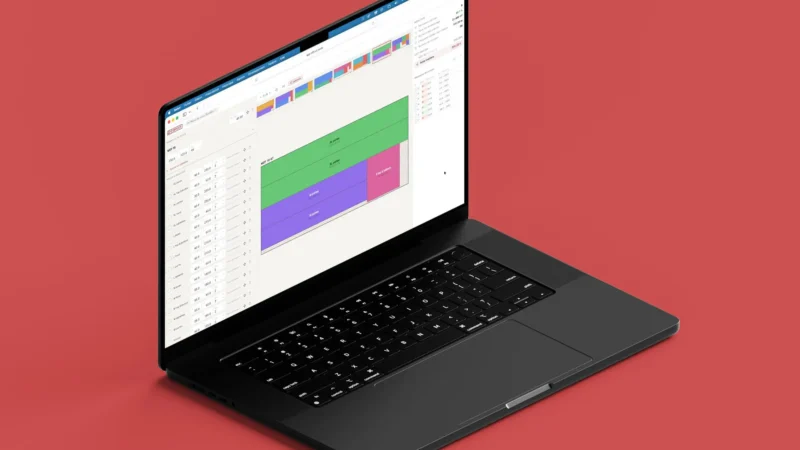
Offcut applies a bin-packing algorithm optimized for rectangular panels. It places parts to minimize off-cuts and reduce sheet count. The result appears as an interactive visual layout — each sheet shown separately, with color-coded parts and labeled dimensions.
Key metrics appear instantly: total material used, waste percentage, number of sheets required, and estimated off-cut area. These numbers help you decide whether to adjust part sizes or use a different sheet format before committing to cuts.
For a quick estimate of how much your panels will weigh before cutting, the wood panel weight calculator on Offcut can be useful — especially when specifying delivery or handling requirements for large CNC jobs.
Step 3 — Export as DXF
Once you’re satisfied with the layout, you export the cutting plan. DXF export is available on the Offcut paid plan.
The DXF file includes:
You load this file into your CAM software (Fusion 360, VCarve, Aspire, Estlcam, etc.), assign toolpaths, and send it to the CNC router or beam saw. No manual re-entry. No dimension guessing.
Offcut also exports PDF, SVG, and PNG for the same layout — useful for sharing with clients or printing a visual guide for manual cutting alongside the CNC workflow.
Offcut vs. CutList Optimizer: The DXF Gap
The most commonly searched free alternative to Offcut is CutList Optimizer. It’s a capable tool for basic projects. But there are clear differences when your workflow involves CNC equipment.
| Feature | Offcut | CutList Optimizer |
|---|---|---|
| Optimization algorithm | Advanced bin-packing | Standard guillotine |
| Export — PDF | ✓ | ✓ |
| Export — PNG / SVG | ✓ | Limited |
| Export — DXF | ✓ (paid plan) | ✗ Not available |
| Import CSV / JSON | ✓ | Limited |
| Off-cut statistics | ✓ | Basic |
| Mixed sheet sizes | ✓ | Partial |
| Mobile app | Coming soon | ✓ |
For a woodworker doing occasional DIY projects, CutList Optimizer is a reasonable free choice. For a cabinet shop or furniture atelier running a CNC machine, the absence of DXF export in CutList Optimizer means additional manual work on every single job.
Offcut’s DXF output is the feature that makes it a professional-grade tool rather than a planning aid.
Who Benefits Most from DXF Export in a Cutting Optimizer
DXF export is not relevant for every user. Here’s a clear breakdown of who gains the most:
Cabinet shops and furniture manufacturers — CNC nesting is standard practice. Generating the nest layout manually in CAM software is time-consuming. Importing an optimized DXF from Offcut reduces setup time per job significantly.
Joinery workshops with beam saws — Many modern beam saw controllers accept DXF or DXF-derived formats. An optimized layout imported directly into the controller eliminates operator re-entry.
Makers and small workshops — If you own a hobby CNC router (Shapeoko, X-Carve, etc.) and cut sheet goods, DXF export turns a web-based optimizer into a serious productivity tool.
Millwork and store fixture contractors — Large part counts, multiple sheet sizes, and tight material budgets make cut optimization essential. DXF export closes the loop to production.
For anyone calculating load-bearing capacity before cutting — for shelving units, for example — Offcut’s shelf deflection calculator pairs well with the cutting planner, ensuring the right panel thickness goes through the CNC before cutting.
Conclusion
A cutting optimizer that stops at a PDF is useful. One that exports DXF is a production tool.
For workshops running CNC equipment, the workflow gap between “optimized layout on screen” and “machine-ready file” is where time and money are lost. Offcut closes that gap with DXF export on its paid plan — a feature that competing free tools like CutList Optimizer do not offer.
If you’re cutting sheet panels on a CNC router, a beam saw, or any numerically controlled machine, the math is simple: fewer manual steps mean fewer errors and faster throughput.
Start optimizing your cutting plans on Offcut →
Generate your first layout for free. Upgrade to export DXF files directly to your CNC workflow.